> ## Documentation Index
> Fetch the complete documentation index at: https://docs.nexus-md.com/llms.txt
> Use this file to discover all available pages before exploring further.
# Loading the DICOM Viewer
> This page is a step by step guide on how to use Nexus-MD DICOM Viewer
* Find patient chart in athena and open the chart
* From menu on the left bar select Apps
* Click on Nexus-Md DICOM Viewer
* At this step, we will automatically log you into Nexus-MD Cloud PACs and search for the patient based on Athena Patient MRN in this example 419797
1. If we find matching MRN in Nexus-Md database, you will see the patient listed in the worklist
2. However, if the patient MRN is not matching with Nexus-MD database, you have the option to search for the patient by patient name from Find Patient box on top right text box in the Nexus-MD DICOM Viewer window
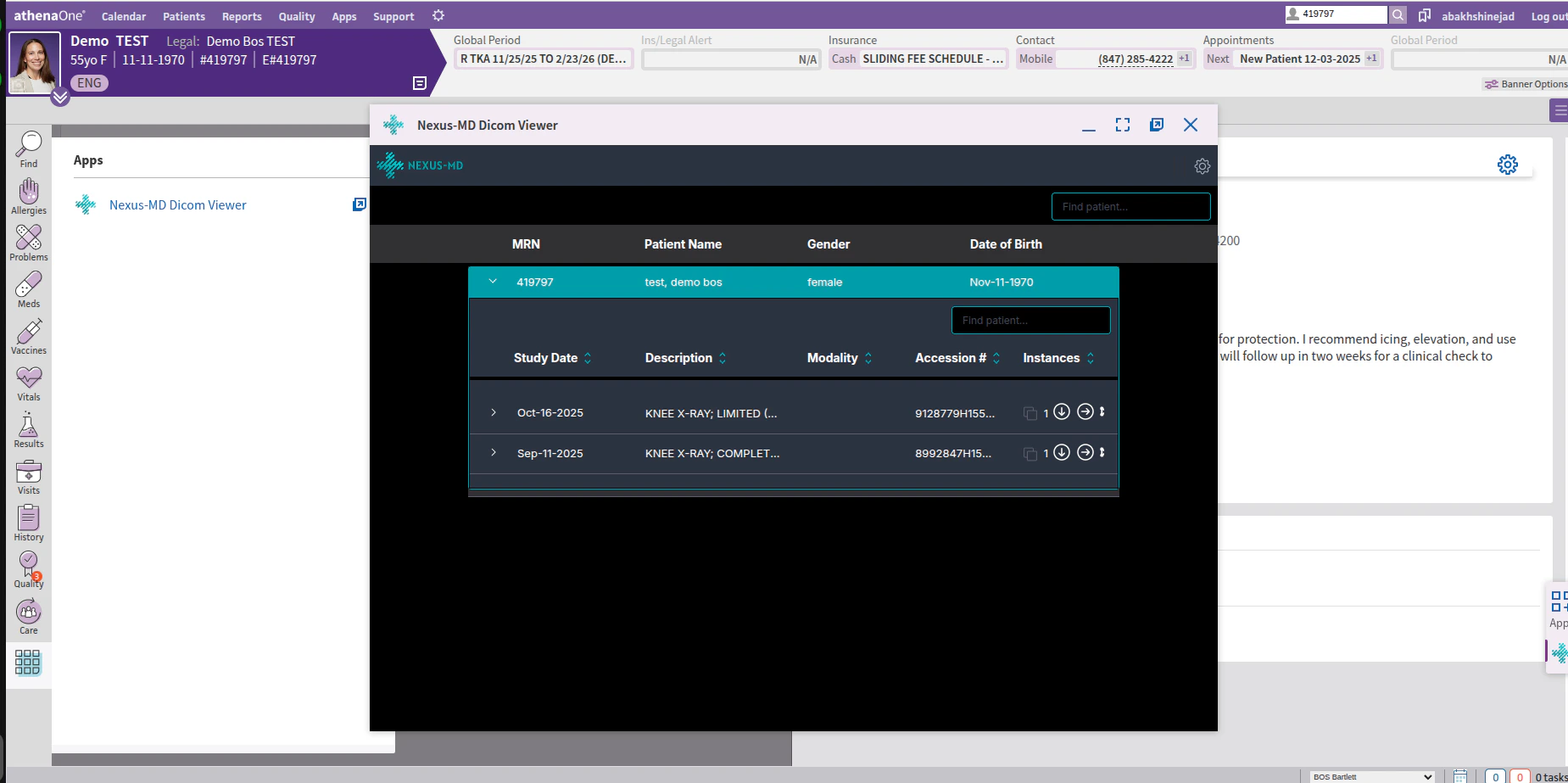
* Once patient was found, you can click on it to expand list of images available for that patient in the Nexus-MD DICOM Viewer Database
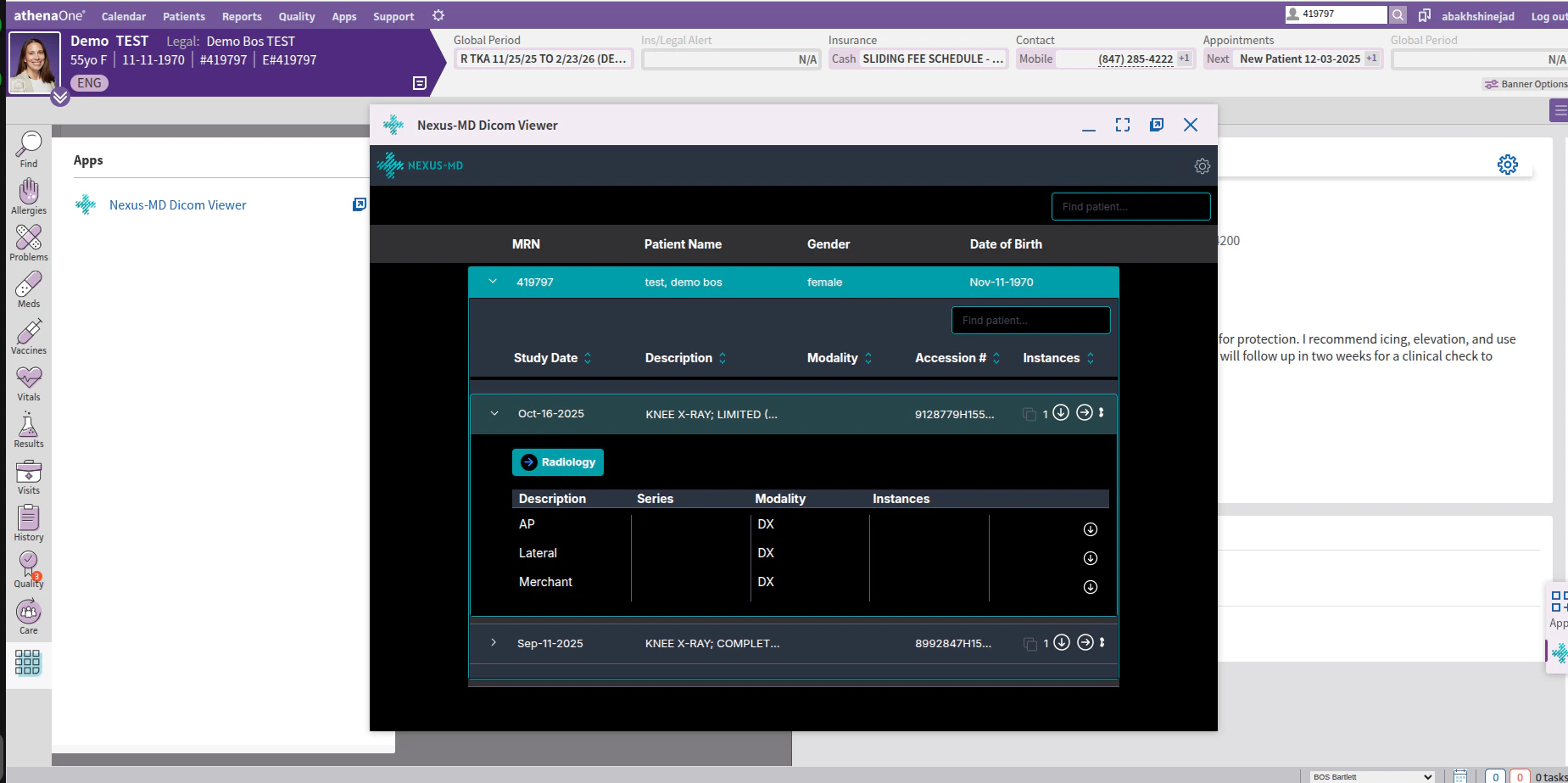
* Once you found the study you are interested in, you need to click on it and expand it
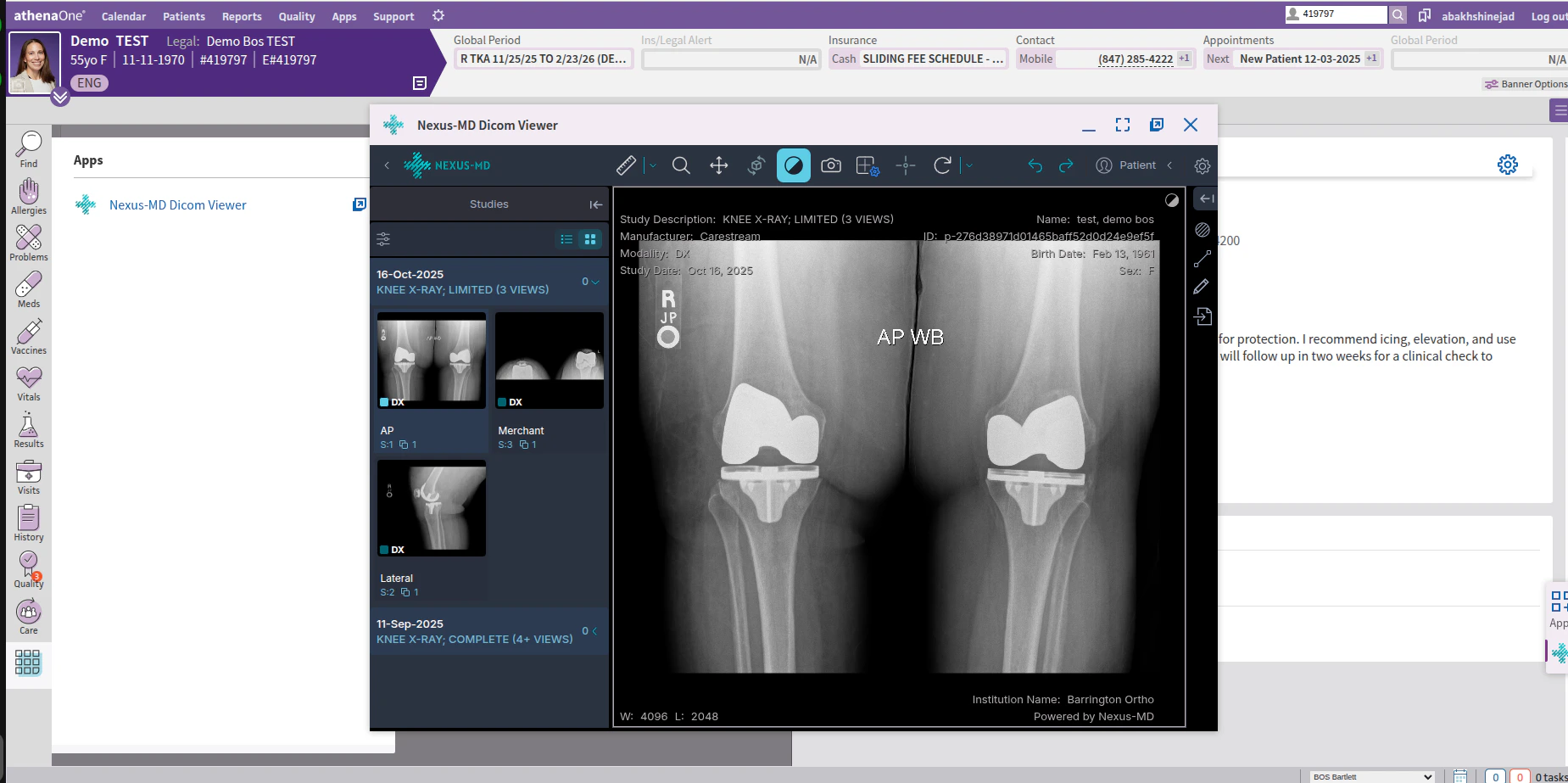
* From here, you can click on the Radiology button to open the Viewer and review the images
## Full Video Of All Steps
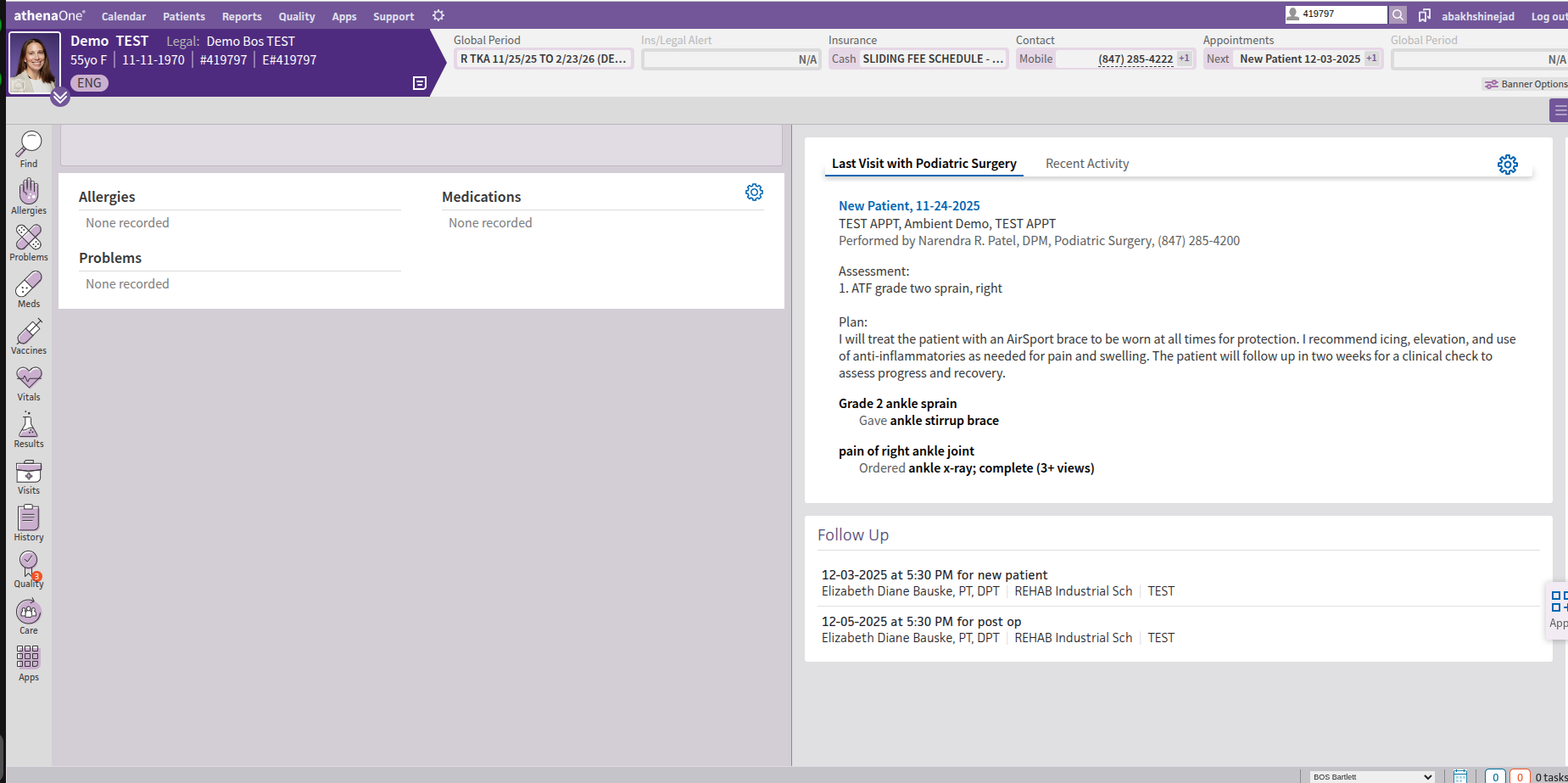 * From menu on the left bar select Apps
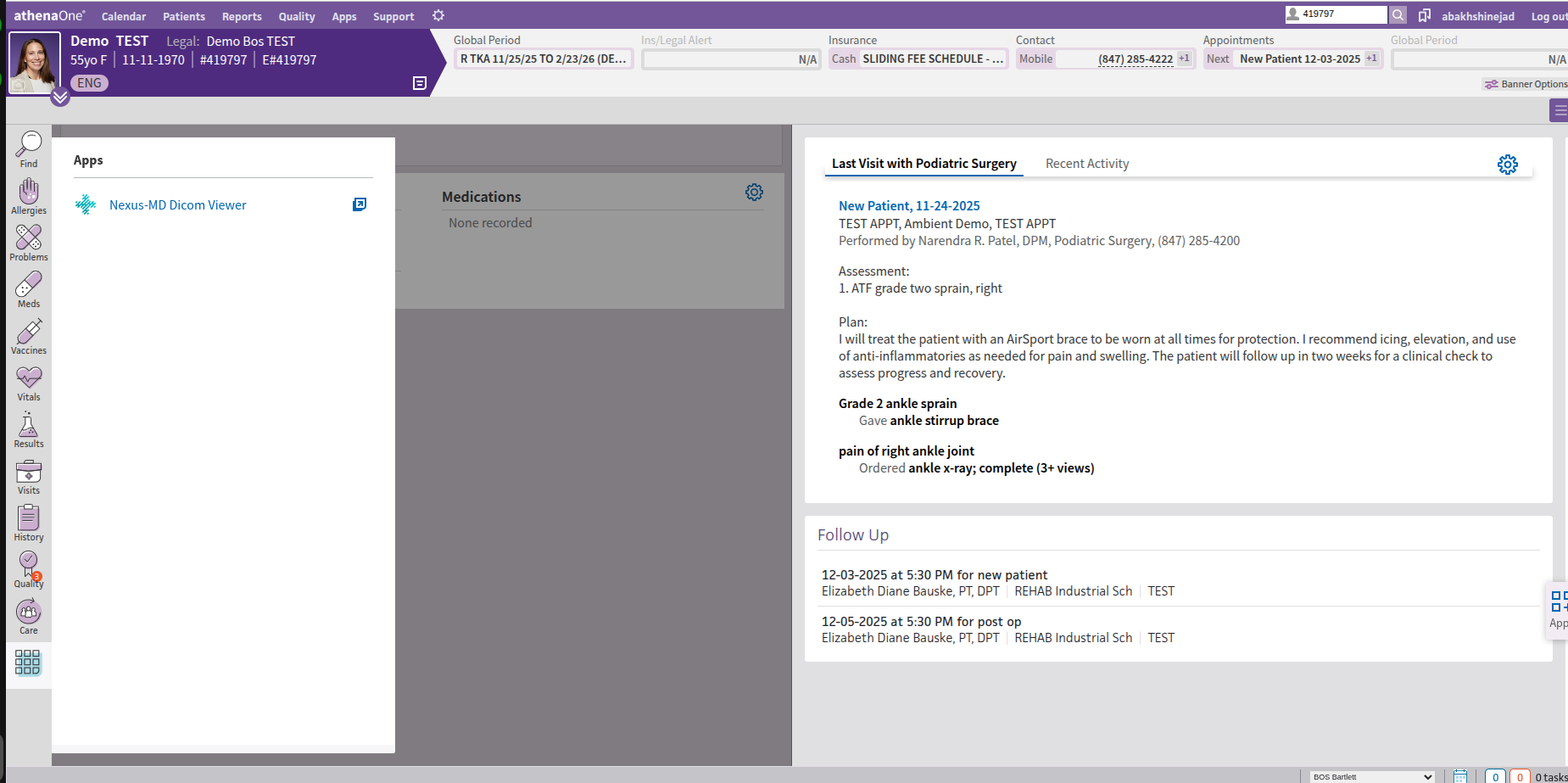 * Click on Nexus-Md DICOM Viewer
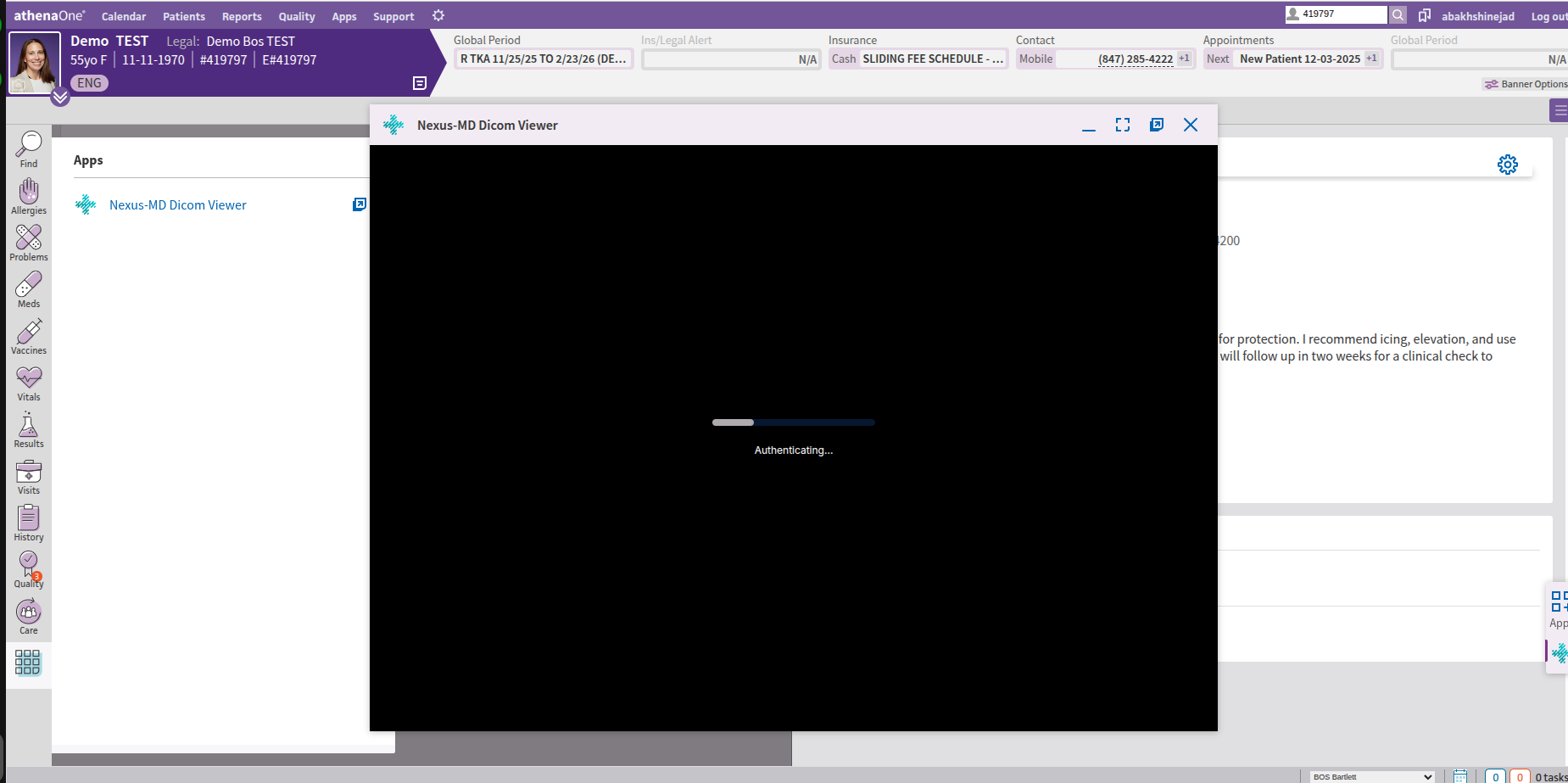 * At this step, we will automatically log you into Nexus-MD Cloud PACs and search for the patient based on Athena Patient MRN in this example 419797
1. If we find matching MRN in Nexus-Md database, you will see the patient listed in the worklist
* At this step, we will automatically log you into Nexus-MD Cloud PACs and search for the patient based on Athena Patient MRN in this example 419797
1. If we find matching MRN in Nexus-Md database, you will see the patient listed in the worklist
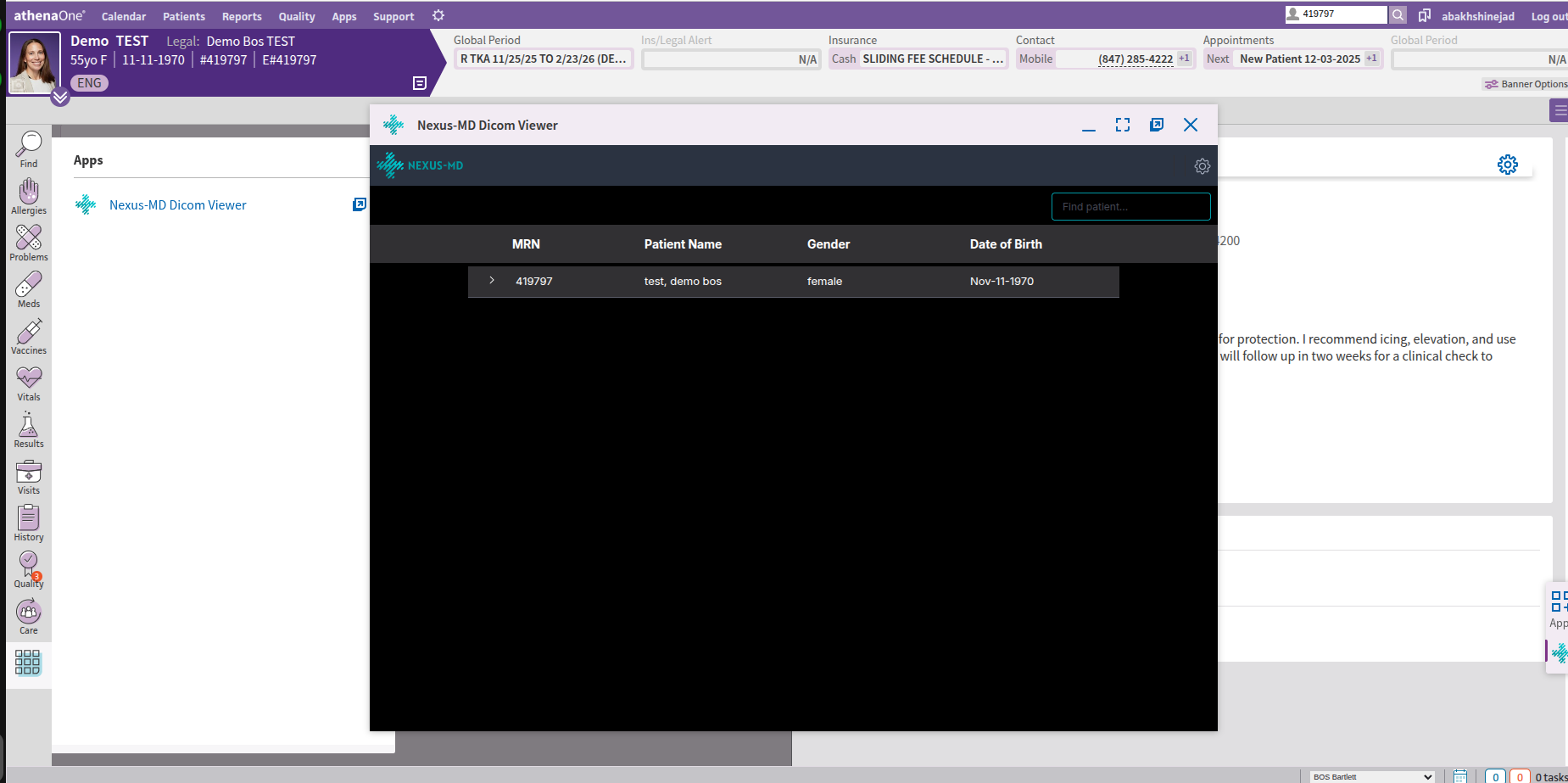 2. However, if the patient MRN is not matching with Nexus-MD database, you have the option to search for the patient by patient name from Find Patient box on top right text box in the Nexus-MD DICOM Viewer window
* Once patient was found, you can click on it to expand list of images available for that patient in the Nexus-MD DICOM Viewer Database
2. However, if the patient MRN is not matching with Nexus-MD database, you have the option to search for the patient by patient name from Find Patient box on top right text box in the Nexus-MD DICOM Viewer window
* Once patient was found, you can click on it to expand list of images available for that patient in the Nexus-MD DICOM Viewer Database
 * Once you found the study you are interested in, you need to click on it and expand it
 * From here, you can click on the Radiology button to open the Viewer and review the images
 ## Full Video Of All Steps