
-
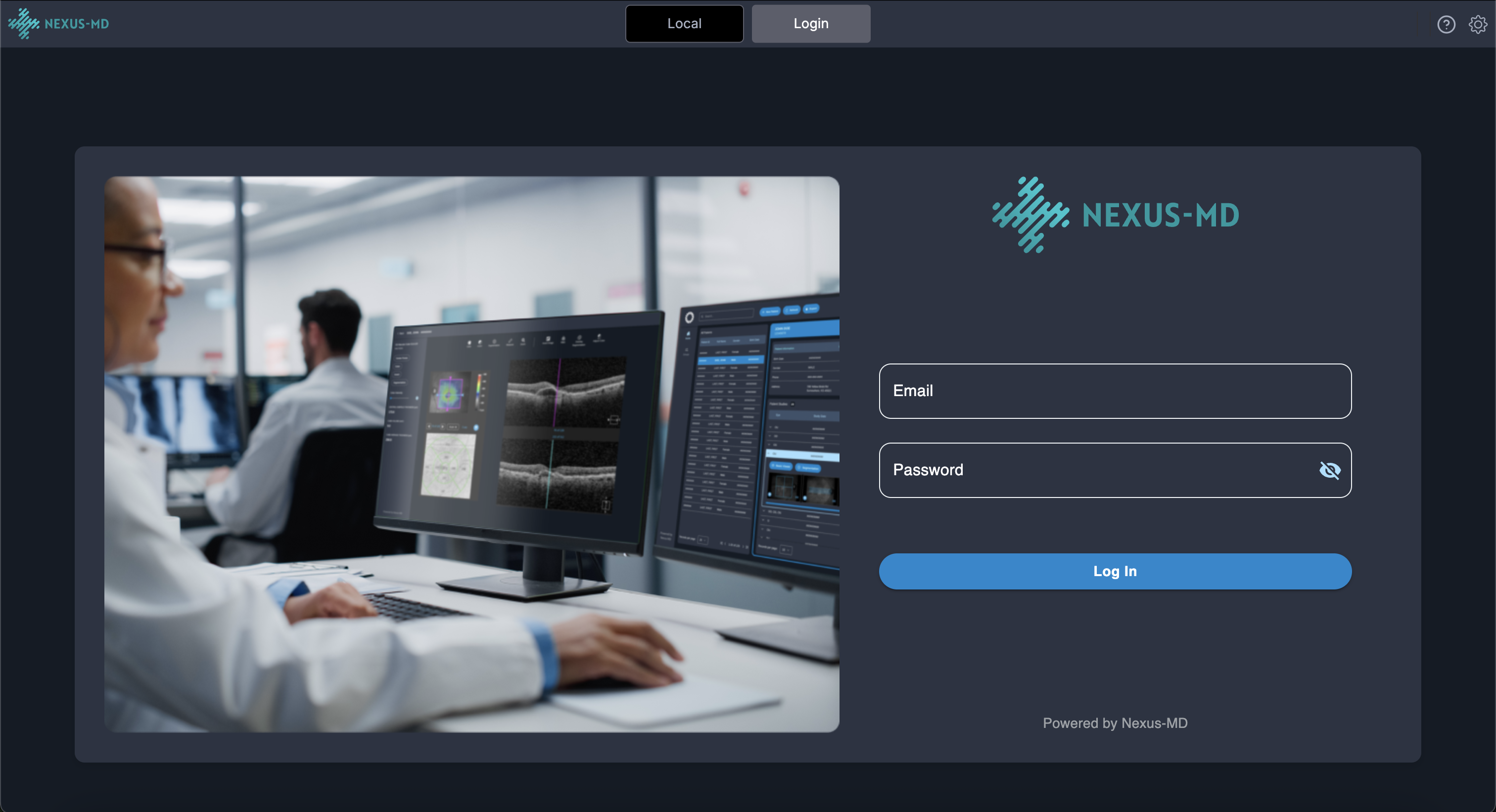
Log in to your Nexus-MD account using the instructions provided in the Login section.
-
After logging in,
a) Click the Import button in the header to bring DICOM files from your chosen source (i.e. the soure can be your CD or Zip file or Folder) into your Local Worklist. The study in Local Worklist is on your local machine and you can view from your local computer.

-
Once the import is complete, each study will appear as a separate row in the Local Worklist.

-
Click on any study row to review the images and verify that all data has been imported correctly.

-
After confirming the imported data, each study row in the Local Worklist provides three action tools on the right side:

- Download (downward arrow): Exports the study from the Local Worklist to any location on your computer.
- Upload (upward arrow): Uploads the study to your Nexus-MD Cloud Database.
- Delete (trash can): Removes the study from the Local Worklist.
-
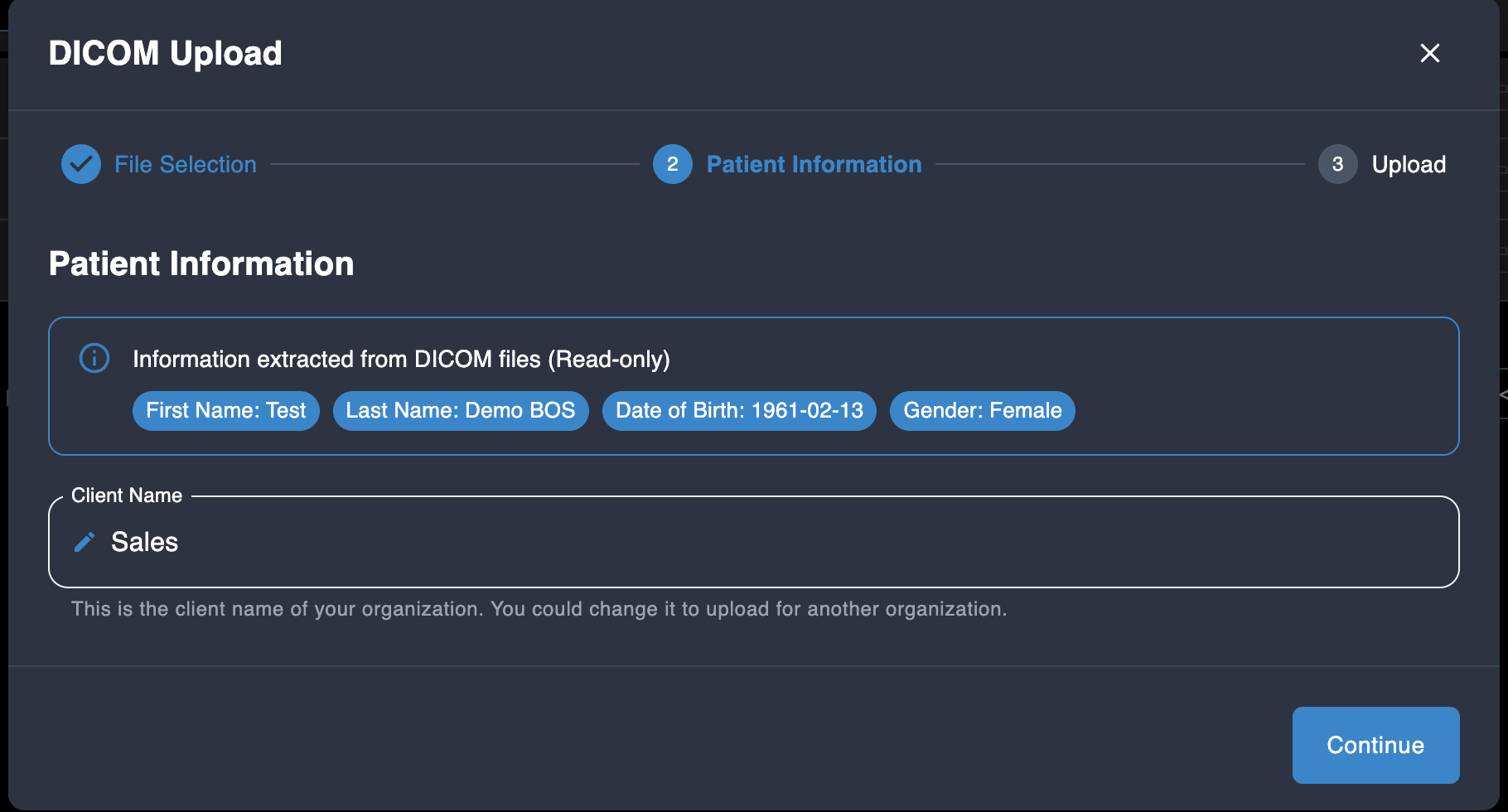
Upload Confirmation Page
After clicking the Upload button, you will be taken to the Upload Confirmation page.
Nexus-MD DICOM Viewer
Uploading Images From Your Computer to Your Nexus-MD Account
To upload medical images from your local computer—including files from discs—to your Nexus-MD cloud account, follow the steps below: