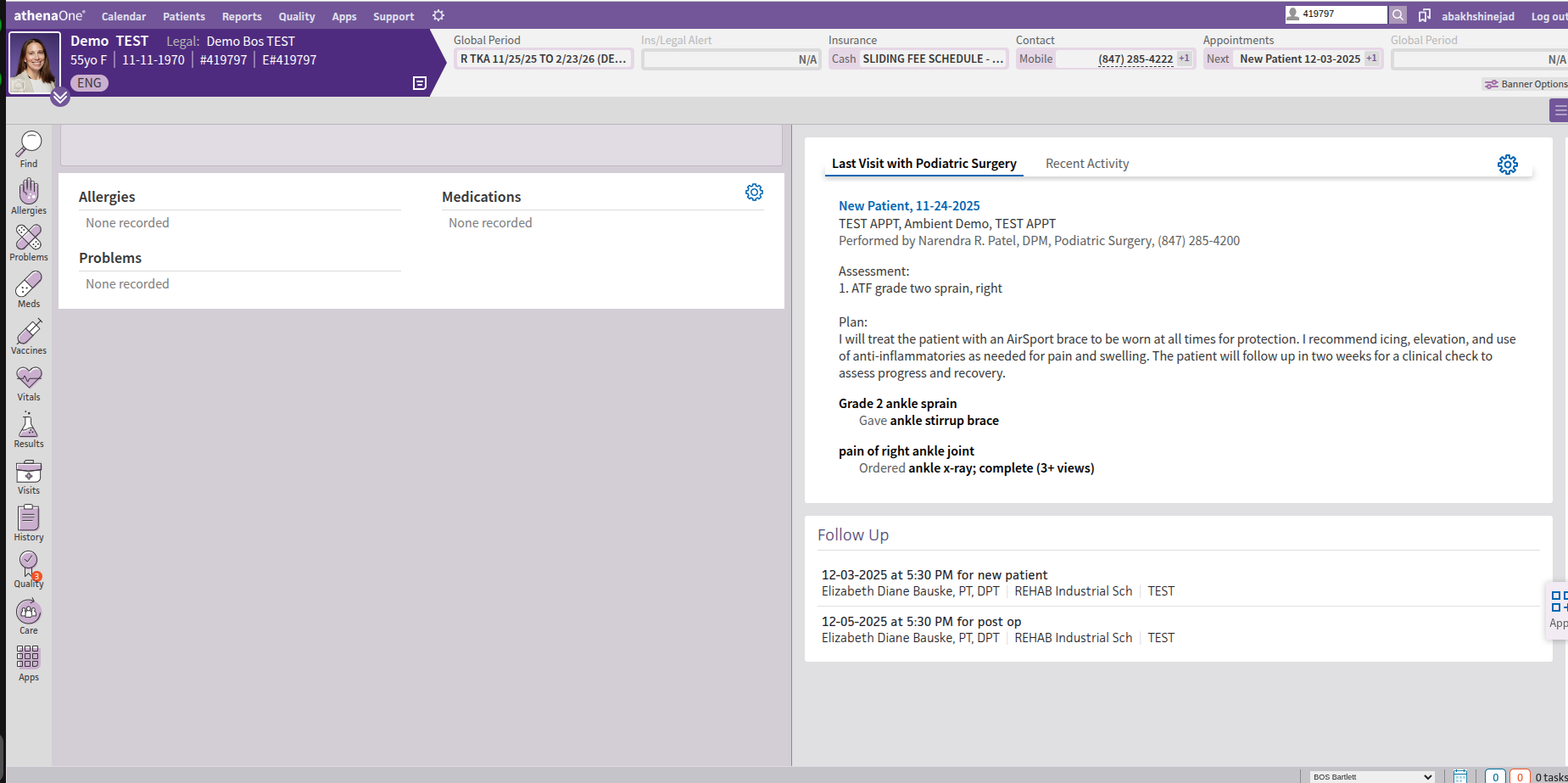
-
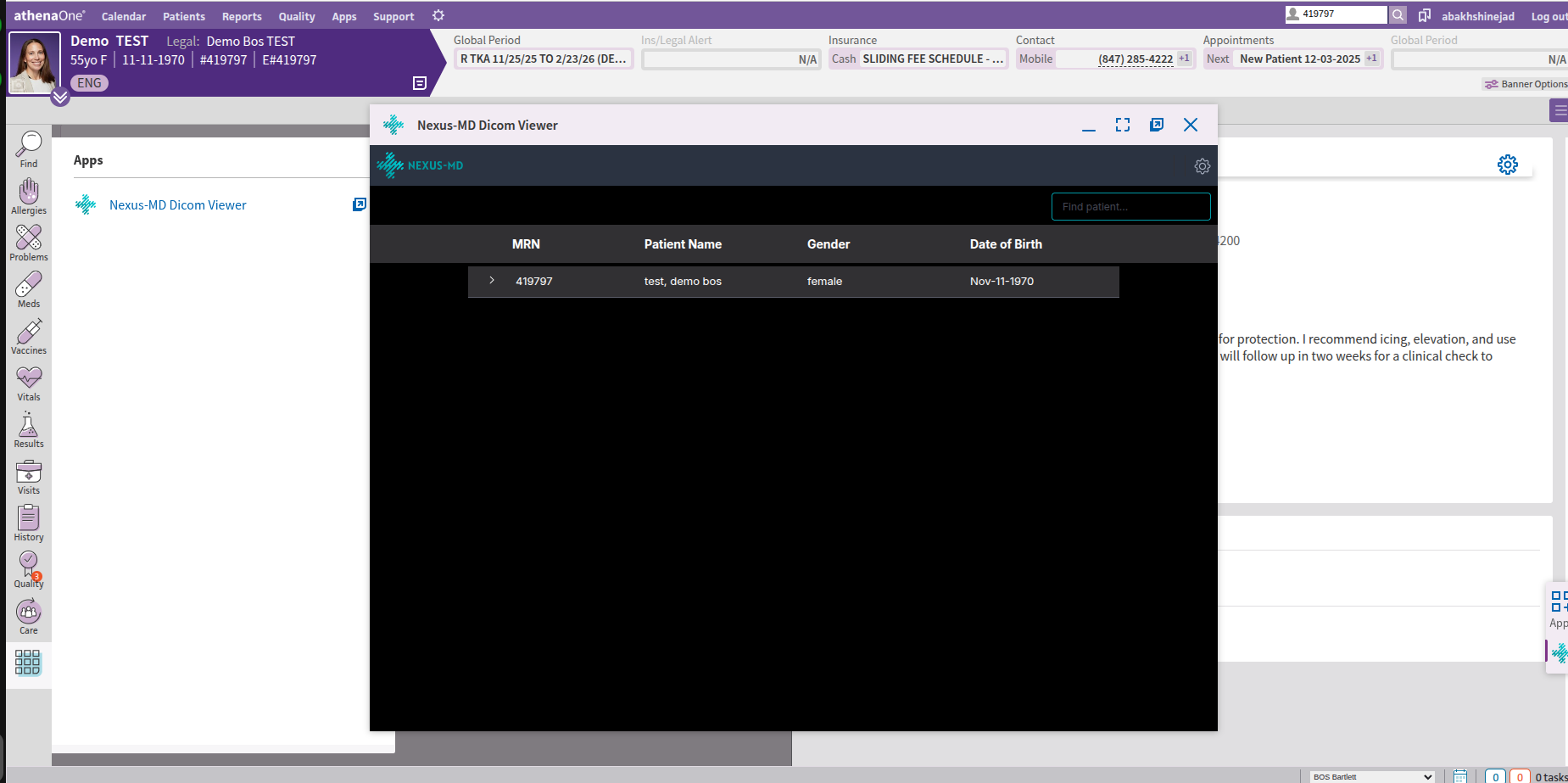
Find patient chart in athena and open the chart
- From menu on the left bar select Apps
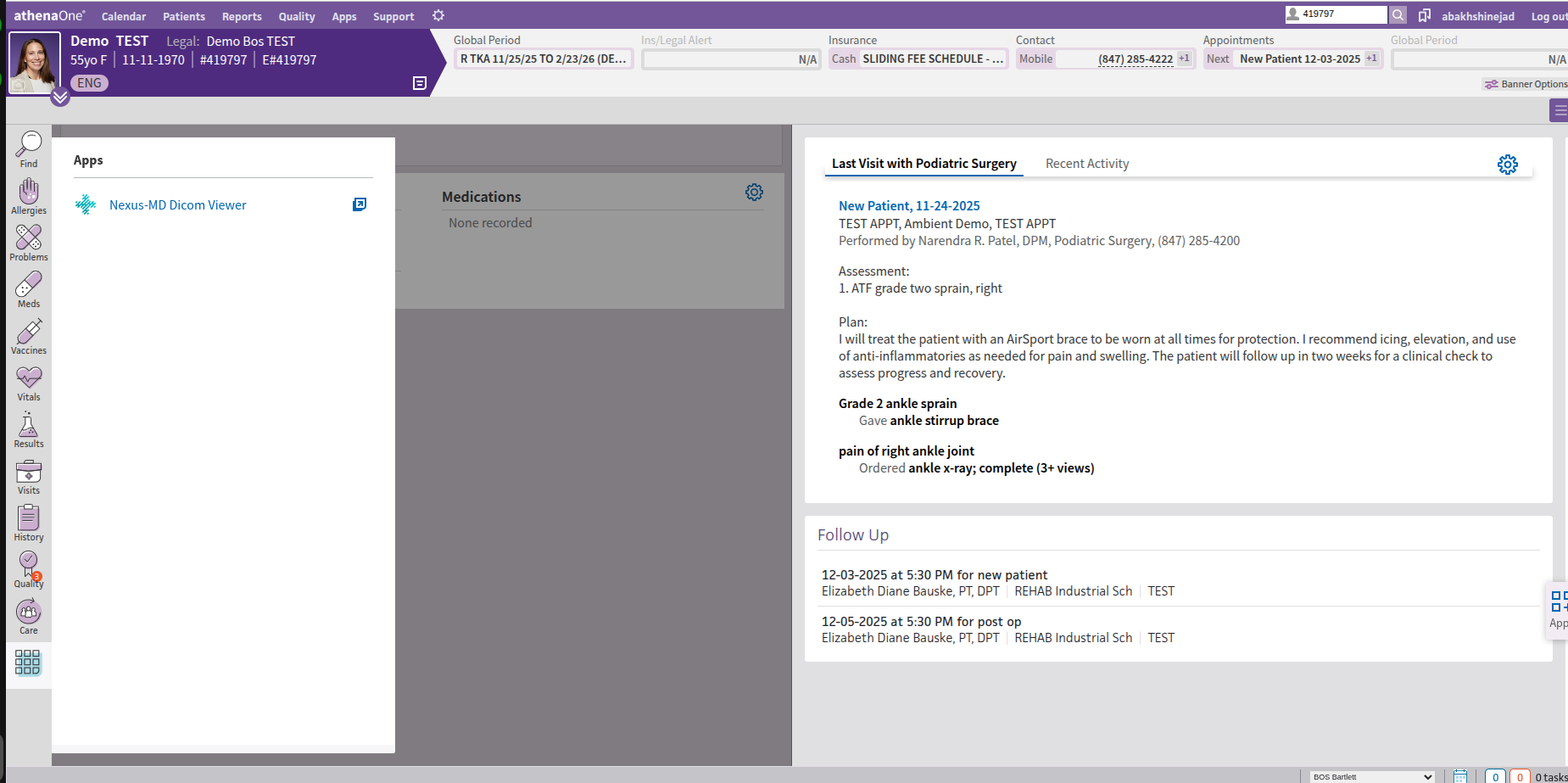
- Click on Nexus-Md DICOM Viewer
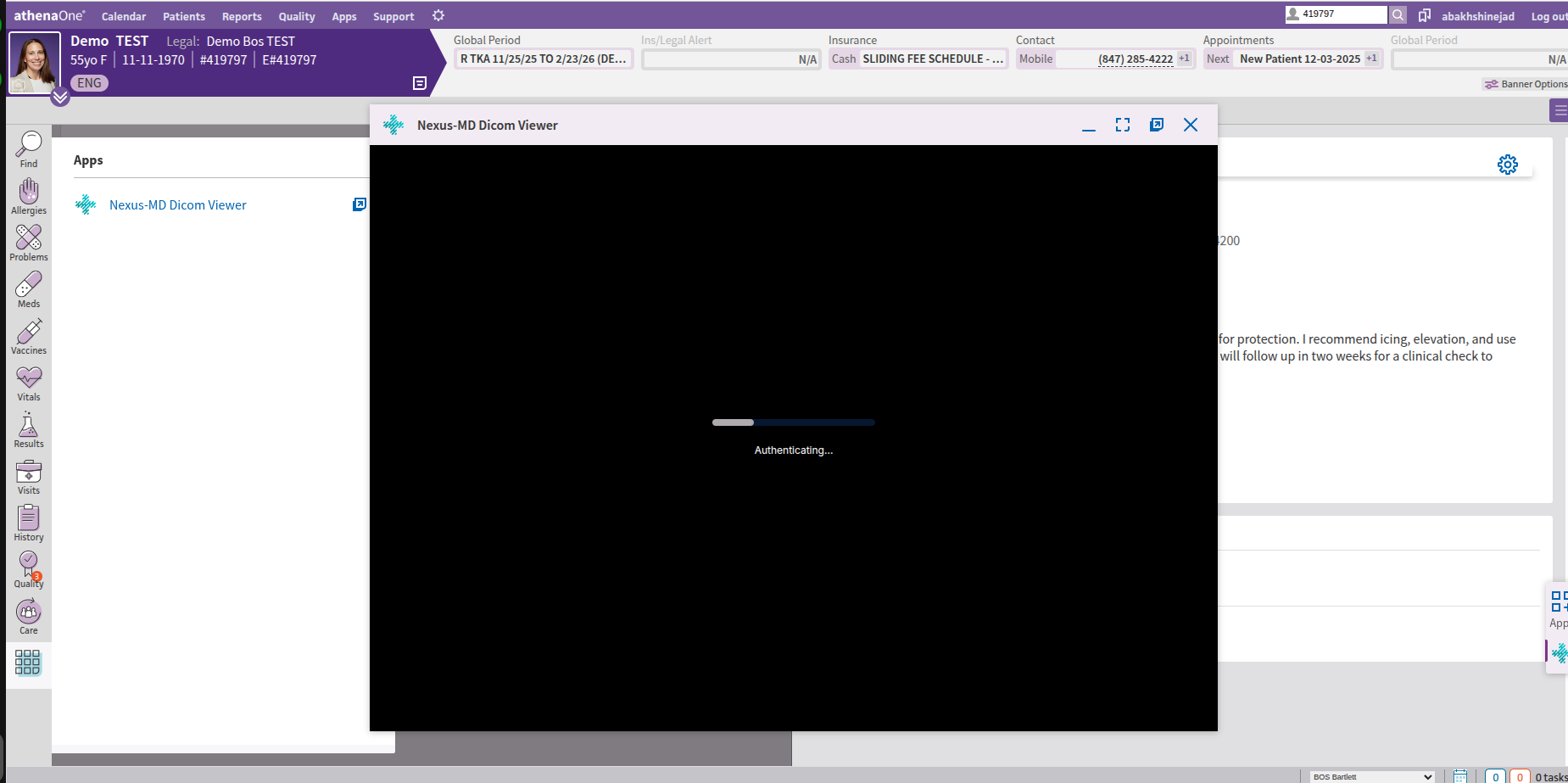
- At this step, we will automatically log you into Nexus-MD Cloud PACs and search for the patient based on Athena Patient MRN in this example 419797
- Next, clink on DICOM Upload button on top left
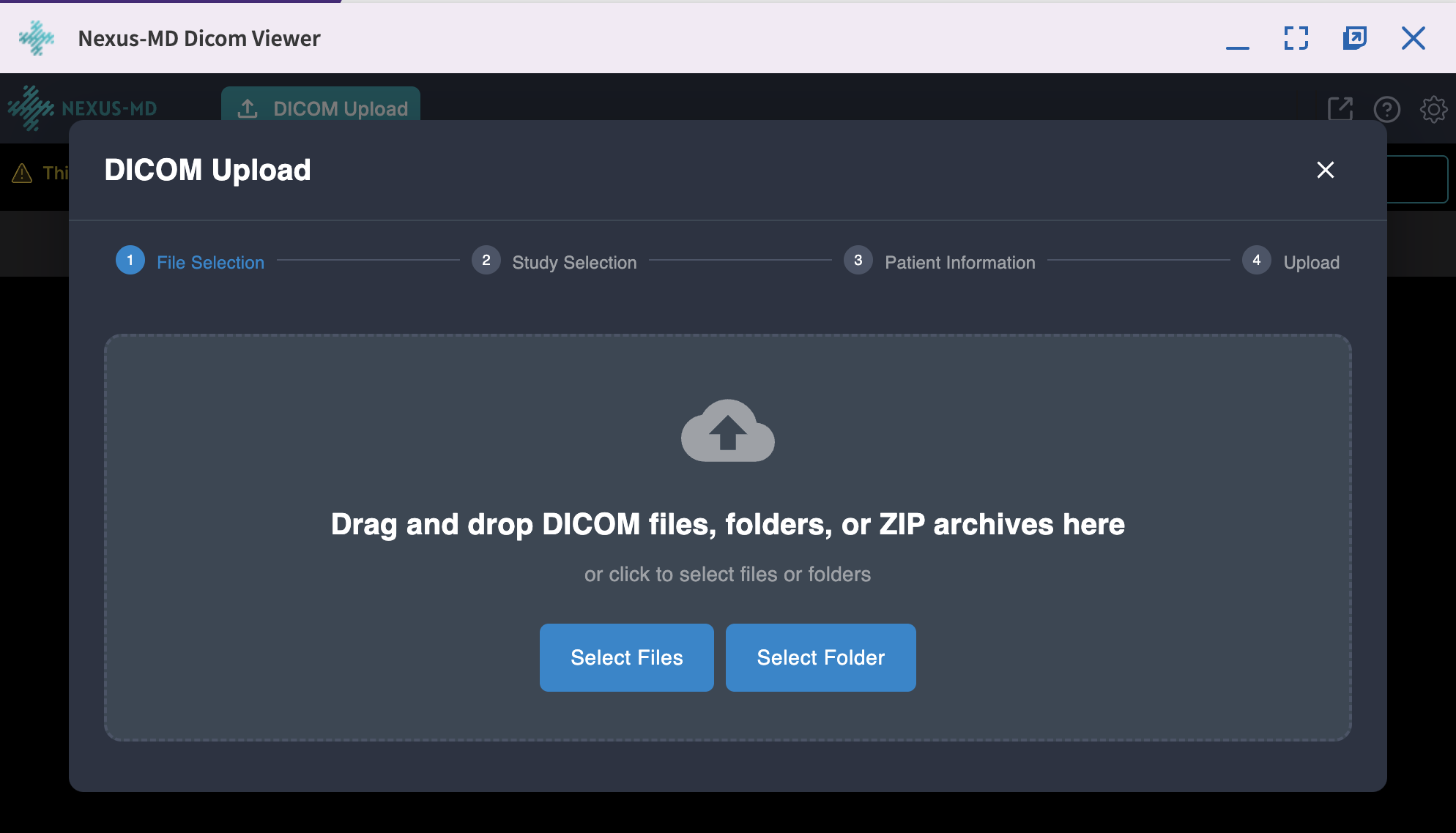
- At this point, please select the file, or folder you want to upload DICOM images from (this can be location of your disc or a local drive). You will be shown list of studies found on the selected location, you can select those you want to upload.
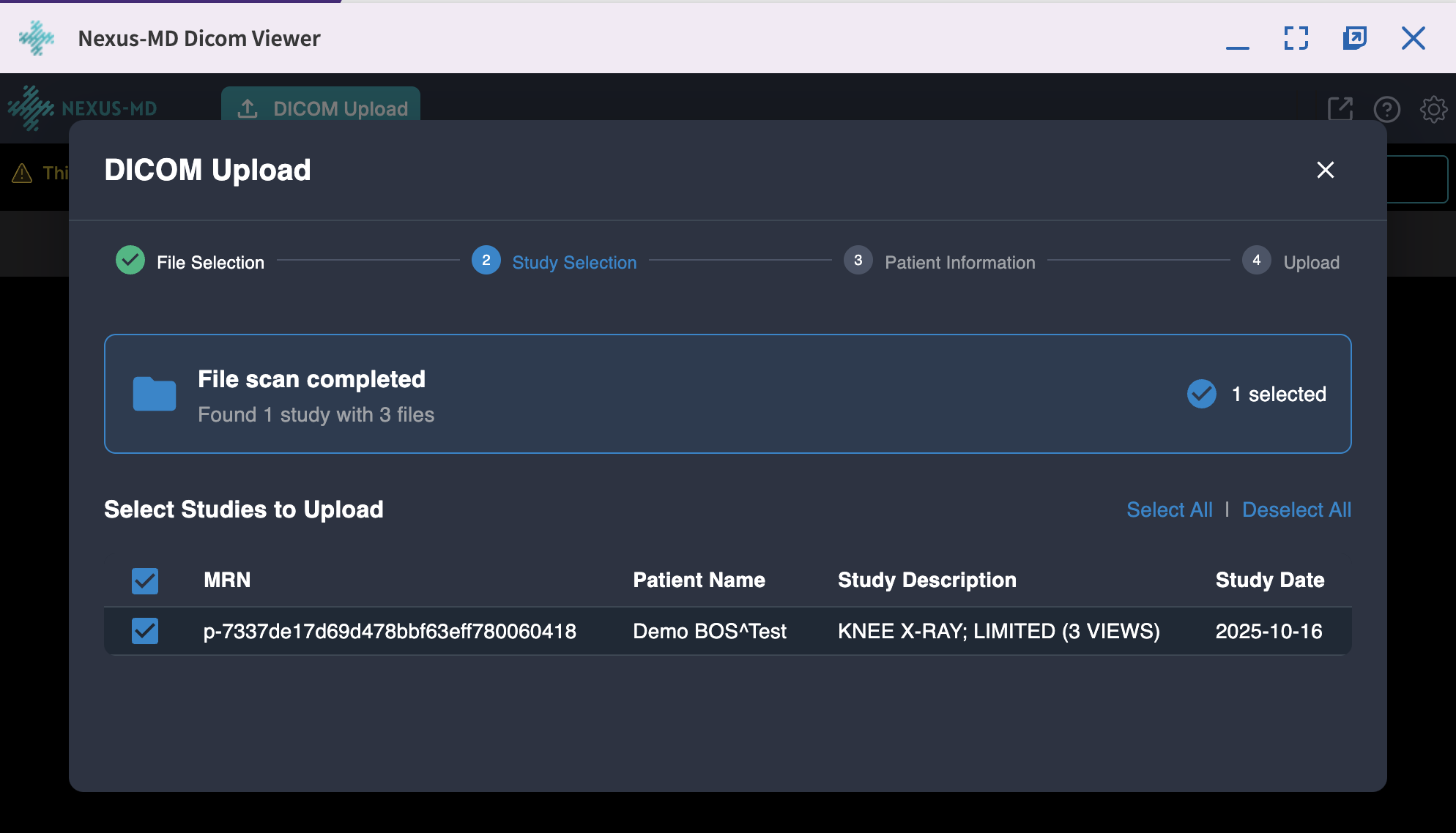
- Once you selected the studies you want to upload, the system will search for patient based on the patient name in the DICOM file, if the system can not automatically match a patient, then you have the option to manually search for the patient.
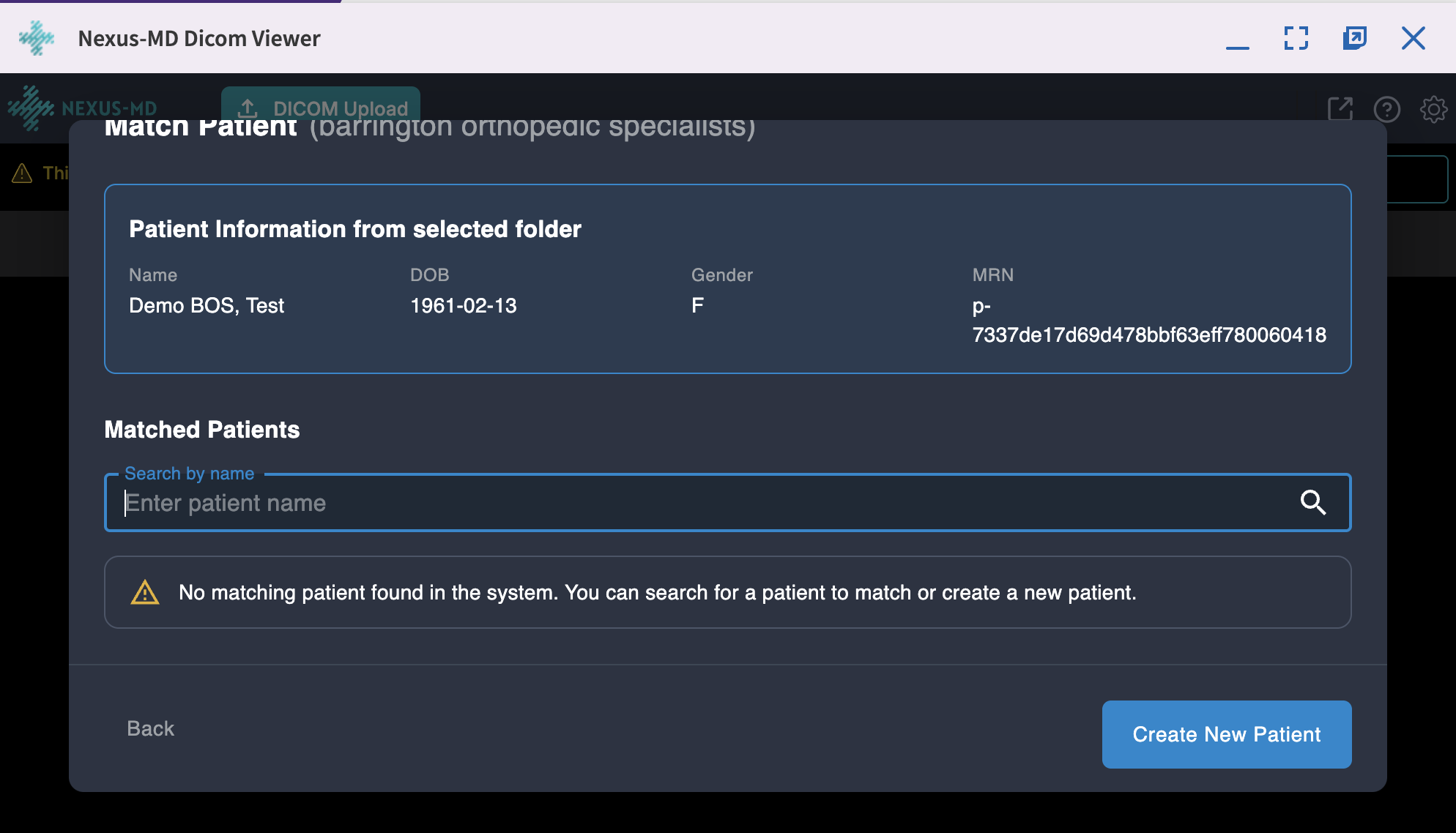
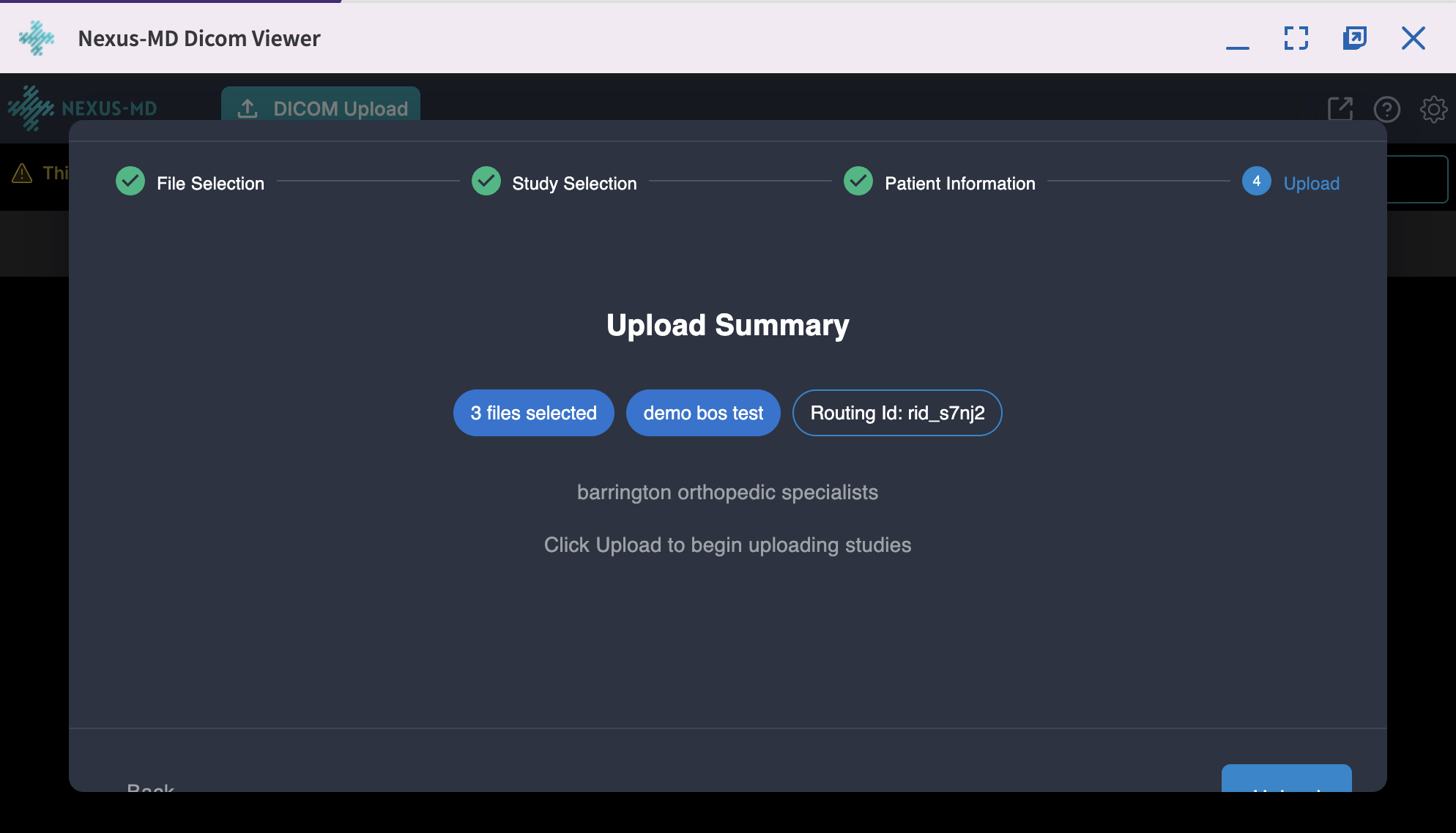
- After selecting the patient, all data is presented to you for confirmation before starting the upload